The Rift tab: the Oculus button menu on Linux
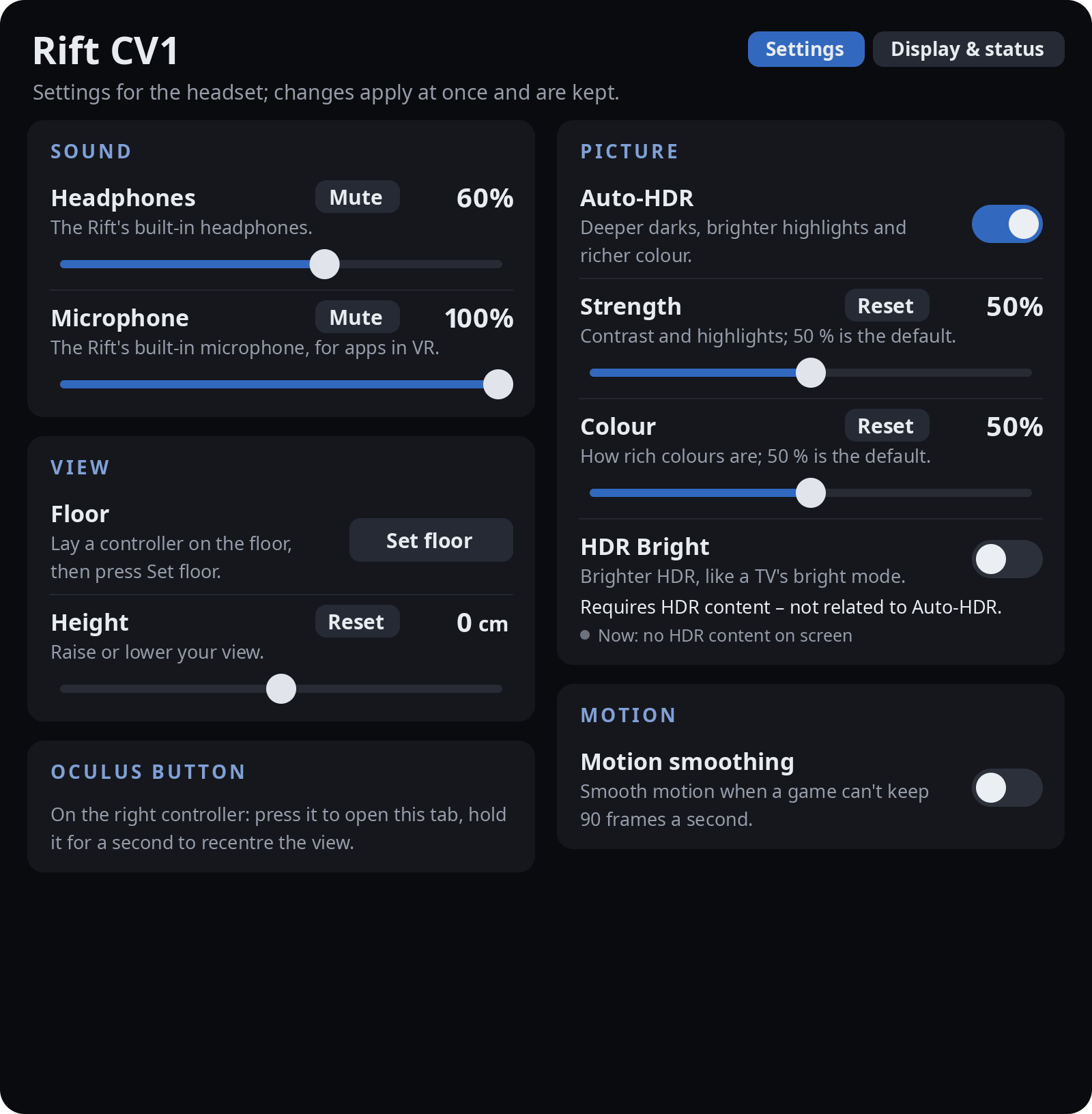
On Windows the Oculus button opens Oculus Dash. With RiftLinux the right Oculus button opens the Rift tab: in SteamVR it is a tab of SteamVR's dashboard, in RiftLinux's own runtime a panel of its own. It holds the headset's settings, with a line on what each one does, and the status of the headset, controllers and sensors. Changes apply at once and are kept.
The Oculus button
- Press the right Oculus button: the Rift tab opens. Pressed again, the dashboard closes.
- Hold it for a second: the view is recentred on where you look.
- The left menu button opens SteamVR's dashboard as usual (SteamVR's own button).
Point at a control with either controller and use the trigger. A switch or button acts when you let go of the trigger on the same control you pressed it on, so a press that slides off does nothing. A slider moves only while you hold its knob; the thumbstick does not change anything.
Settings page
Sound
- Headphones: the volume of the Rift's built-in headphones, and Mute. RiftLinux makes the headphones your computer's sound output while the headset is in use, and puts your usual output back afterwards.
- Microphone: the level of the Rift's built-in microphone, and Mute. It becomes the default input while the headset is in use, so apps in VR hear it; SteamVR is told about it too.
View
- Floor: lay a controller on the floor, then press Set floor. The floor is kept when the sensors are measured again.
- Height: raise or lower your view (-50 to +50 cm). Reset puts it back to 0.
Oculus button: a reminder of what the button does.
Picture (in direct mode, the default; see The picture)
- Auto-HDR: deeper darks, brighter highlights and richer colour, for everything you see.
- Strength: contrast and highlights; 50 % is the default. Colour: how rich colours are; 50 % is the default. Reset puts either back to 50 %.
- HDR Bright: HDR games and videos placed brighter, like a TV's bright picture mode. It needs HDR content and is not part of Auto-HDR; the line under it says whether HDR content is on screen now.
Motion (in direct mode)
- Motion smoothing: smooth motion when a game cannot keep 90 frames a second, like Oculus' ASW. See The picture.
Application (only in RiftLinux's own runtime)
- Close the application: asks the running application to quit, and ends it if it does not. SteamVR has its own Quit in its dashboard, so this card is not shown there.
Display & status page
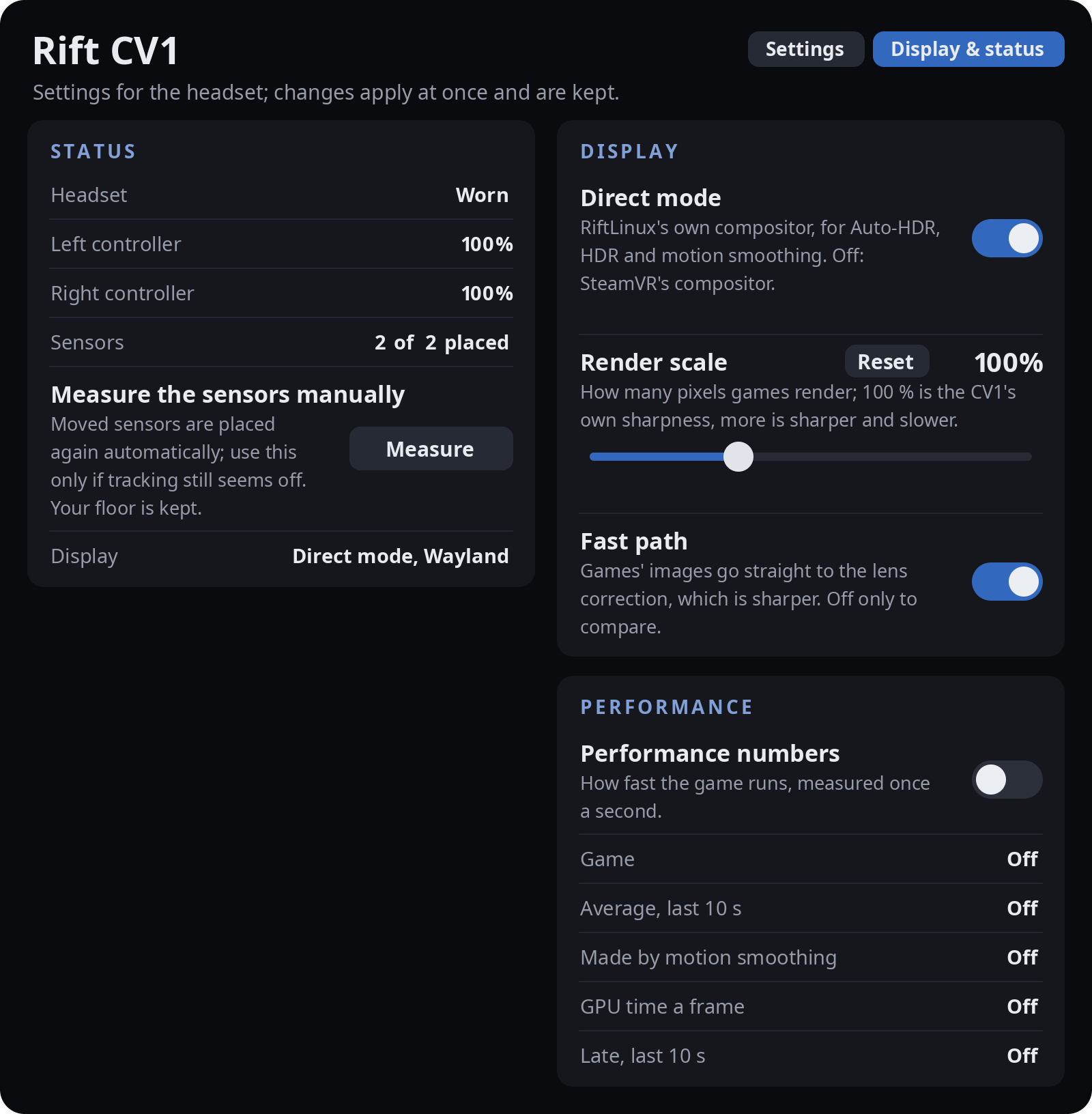
Status
- Headset: worn or not worn (the headset's own wear sensor).
- Left controller, Right controller: the battery of each, as the controller reports it. SteamVR shows it at the controllers too.
- Sensors: how many are placed, and measuring while they are being measured.
- Measure the sensors manually: measures every sensor again. Moved sensors are placed again automatically, so use it only if tracking still seems off. Your floor is kept. The button is greyed while measuring is under way. See Sensors.
- Display: what shows the picture: Direct mode, Wayland, Direct mode, X11, SteamVR's compositor, or RiftLinux runtime.
Display (in SteamVR)
- Direct mode: RiftLinux's own compositor, for Auto-HDR, HDR and motion smoothing. Off: SteamVR's compositor. Takes effect when SteamVR starts again; the tab says so.
- Render scale: how many pixels games render; 100 % is the CV1's own sharpness, more is sharper and slower (50-200 %). Takes effect when SteamVR starts again.
- Fast path: games' images go straight to the lens correction, which is sharper. Off only to compare.
Performance (off until you switch it on; the numbers are read once a second, only while it is on)
- Game: frames a second the game makes now. Average, last 10 s.
- Made by motion smoothing: frames a second motion smoothing makes in between.
- GPU time a frame and Late, last 10 s: the game's GPU time and the frames shown late (SteamVR only).
Notices in the headset
Short panels appear in front of you when something happens, and the ones about the sensors stay until it is over:
| Notice | When |
|---|---|
| Welcome | Once, the first time the headset is put on after installing |
| Measuring where the sensors are | While the sensors are measured (first start, or Measure); says what to do |
| Sensors measured | When measuring is done |
| Sensor N moved / placed again | When a sensor was moved or knocked, until it is placed again |
| No controllers found yet | A controller never reported: press a button on it, or check its battery |
| Real-time priority refused / RealtimeKit is not installed | Steam was started from a remote login, or RealtimeKit is missing |
| The picture may tear | NVIDIA on Wayland with a VRR monitor (shown with drivers before 615; Troubleshooting) |
Each kind can be switched off in ~/.config/riftlinux/settings.json (notices.*, see the README's
Settings).
This page is part of the RiftLinux user guide (CC BY 4.0). Its source is on GitHub.